" height="7px" id="norDTF2KF" transform="translate(54.154 26.375)" width="82.99999332246216px"/><path d="M 9.533 19.066 C 14.798 19.066 19.066 14.798 19.066 9.533 C 19.066 4.268 14.798 0 9.533 0 C 4.268 0 0 4.268 0 9.533 C 0 14.798 4.268 19.066 9.533 19.066 Z" fill="rgb(227, 161, 249)" height="19.06599575000463px" id="WUbWj2QhZ" transform="translate(10.972 1.513)" width="19.06599575000473px"/><path d="M 9.533 19.066 C 14.798 19.066 19.066 14.798 19.066 9.533 C 19.066 4.268 14.798 0 9.533 0 C 4.268 0 0 4.268 0 9.533 C 0 14.798 4.268 19.066 9.533 19.066 Z" fill="rgb(237, 213, 222)" height="19.06599575000463px" id="JLqR0DAPk" transform="translate(1.513 1.513)" width="19.06599575000473px"/><path d="M 8.811 14.257 L 6.187 17.755 L 2.757 15.333 L 0 10.693 L 1.345 4.17 L 5.649 0 L 7.801 1.076 L 11.298 7.532 L 11.298 11.769 L 9.55 11.769 L 8.81 14.257 Z" fill="rgb(184, 145, 255)" height="17.754674138909735px" id="WeMXfrRzz" transform="translate(9.837 1.892)" width="11.297947475624824px"/><path d="M 11.081 2.037 C 16.069 2.037 20.126 6.094 20.126 11.082 C 20.126 16.07 16.069 20.128 11.081 20.128 C 6.094 20.128 2.035 16.07 2.035 11.082 C 2.035 6.094 6.096 2.037 11.081 2.037 Z M 11.081 0 C 4.962 0 0 4.961 0 11.082 C 0 17.204 4.96 22.163 11.081 22.163 C 17.202 22.163 22.163 17.202 22.163 11.082 C 22.163 4.961 17.202 0 11.081 0 Z" fill="rgb(85, 0, 161)" height="22.16307558509487px" id="QvxQBjDzd" transform="translate(9.458 0)" width="22.16307548694067px"/><path d="M 13.791 19.951 C 12.963 20.173 12.11 20.285 11.253 20.284 C 8.728 20.293 6.305 19.286 4.531 17.49 C 2.8 15.746 1.859 13.441 1.878 11.004 C 1.921 5.971 6.048 1.879 11.081 1.879 C 11.893 1.879 12.705 1.967 13.493 2.16 C 14.999 2.53 16.476 3.358 17.535 4.489 C 19.32 6.395 20.244 9.173 20.284 12.744 C 20.285 12.781 20.27 12.816 20.244 12.842 C 20.218 12.869 20.183 12.885 20.145 12.885 C 19.684 12.885 19.381 12.885 19.14 12.883 L 19.035 12.883 C 18.782 12.884 18.573 13.078 18.553 13.33 C 18.409 15.352 17.8 17.884 15.937 19.034 C 15.271 19.443 14.548 19.753 13.793 19.956 Z M 17.79 19.889 C 19.129 18.589 19.942 16.812 20.26 14.866 C 20.27 14.804 20.324 14.759 20.387 14.759 L 20.96 14.759 C 21.622 14.759 22.163 14.22 22.163 13.556 L 22.163 12.982 C 22.163 10.919 21.887 9.042 21.34 7.406 C 20.804 5.794 20.006 4.406 18.969 3.275 C 16.975 1.102 14.005 0 11.084 0 C 8.123 -0.008 5.284 1.179 3.209 3.292 C 1.118 5.389 -0.038 8.241 0.001 11.202 C 0.065 17.243 5.12 22.159 11.268 22.159 C 11.437 22.159 11.605 22.156 11.775 22.147 C 12.921 22.097 14.074 21.917 15.157 21.523 C 16.141 21.172 17.038 20.614 17.789 19.889 Z" fill="rgb(85, 0, 161)" height="22.158571576545228px" id="nnTerxY77" width="22.163285600086056px"/><path d="M 0 1.14 C 0 0.906 0.065 0.703 0.193 0.531 C 0.322 0.357 0.49 0.226 0.698 0.135 C 0.906 0.045 1.121 0 1.342 0 C 1.561 0 1.77 0.048 1.974 0.145 C 2.177 0.241 2.343 0.378 2.468 0.555 C 2.592 0.733 2.656 0.934 2.656 1.155 C 2.656 1.483 2.523 1.75 2.256 1.956 C 2.001 2.158 1.685 2.267 1.36 2.265 C 1.028 2.265 0.698 2.162 0.42 1.958 C 0.151 1.773 -0.006 1.466 0.002 1.14 L 0.001 1.14 Z M 9.294 1.14 C 9.294 0.906 9.359 0.703 9.486 0.531 C 9.616 0.357 9.784 0.226 9.993 0.135 C 10.201 0.045 10.415 0 10.635 0 C 10.855 0 11.064 0.048 11.268 0.145 C 11.471 0.241 11.637 0.378 11.762 0.555 C 11.887 0.733 11.95 0.934 11.95 1.155 C 11.95 1.483 11.817 1.75 11.551 1.956 C 11.296 2.158 10.979 2.267 10.654 2.265 C 10.321 2.265 9.993 2.162 9.714 1.958 C 9.446 1.773 9.288 1.466 9.296 1.14 Z" fill="rgb(85, 0, 161)" height="2.2647690980797823px" id="ndWSzoWa1" transform="translate(14.755 8.702)" width="11.950203720331046px"/><path d="M 27.919 19.802 C 28.673 19.802 29.366 19.652 29.996 19.348 C 30.627 19.046 31.27 18.604 31.928 18.019 C 32.256 17.738 32.476 17.559 32.584 17.482 C 32.692 17.404 32.88 17.365 33.146 17.365 C 33.358 17.365 33.556 17.443 33.736 17.6 C 33.917 17.758 34.008 17.946 34.008 18.163 C 34.008 18.646 33.742 19.151 33.211 19.679 C 32.679 20.206 32.141 20.623 31.6 20.927 C 30.208 21.762 28.566 22.178 26.671 22.178 C 25.666 22.178 24.668 22.013 23.717 21.689 C 22.778 21.38 21.903 20.905 21.132 20.286 C 20.384 19.683 19.773 18.927 19.342 18.068 C 18.902 17.198 18.682 16.233 18.682 15.175 C 18.682 13.576 19.096 12.172 19.922 10.963 C 20.748 9.755 21.848 8.827 23.221 8.183 C 24.594 7.539 26.06 7.216 27.622 7.216 C 28.565 7.216 29.506 7.369 30.446 7.673 C 31.385 7.977 32.165 8.454 32.784 9.104 C 33.404 9.754 33.711 10.569 33.711 11.55 C 33.711 12.531 33.312 13.37 32.511 14.036 C 31.712 14.703 30.754 15.219 29.637 15.587 C 29.078 15.762 28.511 15.906 27.937 16.018 C 27.245 16.154 26.55 16.27 25.853 16.366 C 25.263 16.448 24.673 16.534 24.084 16.623 C 24.296 17.565 24.751 18.331 25.447 18.92 C 26.143 19.509 26.966 19.804 27.919 19.804 Z M 29.079 11.224 C 29.079 10.635 28.928 10.167 28.624 9.819 C 28.319 9.471 27.877 9.297 27.297 9.297 C 26.2 9.297 25.347 9.846 24.737 10.945 C 24.128 12.043 23.824 13.274 23.824 14.636 C 25.118 14.54 26.319 14.219 27.423 13.675 C 28.527 13.131 29.08 12.315 29.08 11.223 L 29.08 11.224 Z M 50.601 17.968 C 50.601 18.76 50.64 19.285 50.718 19.54 C 50.785 19.652 50.974 19.822 51.284 20.047 C 51.641 20.256 51.82 20.512 51.82 20.816 C 51.82 21.43 51.444 21.737 50.691 21.737 L 45.673 21.737 C 44.919 21.737 44.541 21.43 44.541 20.816 C 44.541 20.512 44.72 20.256 45.078 20.047 C 45.388 19.82 45.575 19.652 45.644 19.54 C 45.721 19.285 45.761 18.76 45.761 17.968 L 45.761 13.181 C 45.761 12.084 45.631 11.231 45.373 10.622 C 45.114 10.014 44.511 9.708 43.564 9.708 C 42.53 9.708 41.768 10.114 41.281 10.926 C 40.98 11.4 40.831 12.211 40.831 13.362 L 40.831 17.966 C 40.831 18.758 40.872 19.282 40.954 19.539 C 41.012 19.64 41.198 19.81 41.512 20.046 C 41.869 20.254 42.049 20.51 42.049 20.814 C 42.049 21.428 41.673 21.735 40.924 21.735 L 35.894 21.735 C 35.145 21.735 34.769 21.428 34.769 20.814 C 34.769 20.51 34.946 20.254 35.299 20.046 C 35.618 19.818 35.806 19.649 35.864 19.539 C 35.947 19.282 35.988 18.758 35.988 17.965 L 35.988 12.29 C 35.988 11.622 35.938 11.158 35.839 10.898 C 35.741 10.637 35.493 10.41 35.097 10.217 C 34.682 10.043 34.473 9.774 34.473 9.412 C 34.473 9.088 34.771 8.759 35.366 8.423 C 35.962 8.087 36.64 7.802 37.399 7.568 C 38.159 7.333 38.71 7.216 39.054 7.216 C 39.489 7.216 39.799 7.424 39.983 7.839 C 40.167 8.255 40.302 8.76 40.39 9.355 C 41.554 7.928 43.128 7.216 45.11 7.216 C 46.927 7.216 48.334 7.741 49.33 8.789 C 50.181 9.716 50.605 11.152 50.605 13.094 L 50.605 17.967 L 50.601 17.967 Z M 68.758 17.968 C 68.758 18.76 68.796 19.285 68.874 19.54 C 68.942 19.652 69.131 19.822 69.44 20.047 C 69.798 20.256 69.978 20.512 69.978 20.816 C 69.978 21.43 69.601 21.737 68.847 21.737 L 63.83 21.737 C 63.076 21.737 62.699 21.43 62.699 20.816 C 62.699 20.512 62.878 20.256 63.236 20.047 C 63.546 19.82 63.733 19.652 63.802 19.54 C 63.879 19.285 63.919 18.76 63.919 17.968 L 63.919 13.181 C 63.919 12.084 63.79 11.231 63.531 10.622 C 63.272 10.014 62.669 9.708 61.722 9.708 C 60.688 9.708 59.926 10.114 59.439 10.926 C 59.138 11.4 58.989 12.211 58.989 13.362 L 58.989 17.966 C 58.989 18.758 59.03 19.282 59.112 19.539 C 59.17 19.64 59.356 19.81 59.67 20.046 C 60.027 20.254 60.207 20.51 60.207 20.814 C 60.207 21.428 59.831 21.735 59.082 21.735 L 54.052 21.735 C 53.303 21.735 52.927 21.428 52.927 20.814 C 52.927 20.51 53.104 20.254 53.456 20.046 C 53.776 19.818 53.963 19.649 54.022 19.539 C 54.105 19.282 54.146 18.758 54.146 17.965 L 54.146 12.29 C 54.146 11.622 54.096 11.158 53.997 10.898 C 53.899 10.637 53.651 10.41 53.255 10.217 C 52.84 10.043 52.631 9.774 52.631 9.412 C 52.631 9.088 52.929 8.759 53.525 8.423 C 54.17 8.066 54.851 7.779 55.557 7.568 C 56.317 7.333 56.868 7.216 57.212 7.216 C 57.647 7.216 57.957 7.424 58.141 7.839 C 58.325 8.255 58.46 8.76 58.548 9.355 C 59.712 7.928 61.286 7.216 63.268 7.216 C 65.085 7.216 66.491 7.741 67.488 8.789 C 68.339 9.716 68.763 11.152 68.763 13.094 L 68.763 17.967 L 68.758 17.967 Z M 71.343 19.81 C 71.343 19.316 71.48 18.887 71.753 18.523 C 72.026 18.159 72.384 17.88 72.826 17.688 C 73.256 17.499 73.722 17.402 74.192 17.402 C 74.661 17.402 75.105 17.503 75.538 17.706 C 75.97 17.909 76.32 18.198 76.586 18.572 C 76.851 18.946 76.984 19.368 76.984 19.837 C 76.984 20.529 76.702 21.09 76.136 21.526 C 75.593 21.953 74.92 22.183 74.229 22.178 C 73.512 22.18 72.812 21.953 72.232 21.53 C 71.639 21.097 71.343 20.523 71.343 19.808 Z M 93.131 17.665 C 93.131 18.497 93.18 19.039 93.276 19.295 C 93.393 19.537 93.609 19.725 93.929 19.861 C 94.426 20.113 94.675 20.421 94.675 20.784 C 94.675 21.202 94.534 21.465 94.252 21.574 C 93.969 21.683 93.575 21.737 93.067 21.737 L 90.103 21.737 C 89.616 21.737 89.264 21.68 89.048 21.563 C 88.842 21.458 88.692 21.267 88.639 21.042 C 88.581 20.812 88.534 20.427 88.502 19.889 C 87.569 21.416 86.035 22.179 83.9 22.179 C 82.937 22.179 82.051 22.004 81.24 21.653 C 80.429 21.303 79.776 20.781 79.288 20.087 C 78.797 19.394 78.551 18.558 78.551 17.582 C 78.551 16.607 78.831 15.741 79.389 15.045 C 79.947 14.349 80.663 13.805 81.537 13.414 C 82.425 13.017 83.36 12.736 84.319 12.576 C 85.257 12.413 86.207 12.329 87.159 12.326 L 88.173 12.326 C 88.173 11.388 87.94 10.632 87.474 10.059 C 87.008 9.486 86.32 9.2 85.413 9.2 C 85.007 9.2 84.672 9.277 84.407 9.432 C 84.14 9.586 83.825 9.826 83.461 10.152 C 83.097 10.478 82.774 10.72 82.494 10.873 C 82.213 11.028 81.87 11.105 81.465 11.105 C 80.977 11.105 80.548 10.987 80.178 10.749 C 79.808 10.513 79.623 10.155 79.623 9.677 C 79.623 9.044 79.999 8.545 80.751 8.179 C 81.502 7.815 82.357 7.561 83.313 7.422 C 84.269 7.282 85.088 7.212 85.769 7.212 C 87.789 7.212 89.442 7.58 90.726 8.314 C 91.61 8.821 92.232 9.449 92.593 10.193 C 92.953 10.94 93.133 11.866 93.133 12.972 L 93.133 17.661 Z M 87.78 14.197 C 86.615 14.197 85.616 14.487 84.786 15.07 C 83.954 15.653 83.539 16.497 83.539 17.607 C 83.539 18.197 83.706 18.699 84.043 19.117 C 84.379 19.535 84.835 19.743 85.409 19.743 C 86.298 19.743 87.06 19.268 87.693 18.317 C 87.978 17.839 88.154 17.379 88.219 16.937 C 88.285 16.495 88.316 15.899 88.316 15.145 L 88.316 14.197 Z M 96.883 13.334 C 96.883 12.285 96.854 11.543 96.796 11.107 C 96.743 10.817 96.658 10.608 96.538 10.478 C 96.42 10.348 96.218 10.199 95.933 10.035 C 95.642 9.866 95.447 9.738 95.345 9.649 C 95.244 9.564 95.193 9.413 95.193 9.2 C 95.191 9.023 95.26 8.852 95.385 8.725 C 95.512 8.592 95.666 8.486 95.845 8.41 C 96.025 8.333 96.225 8.266 96.447 8.211 C 96.669 8.156 96.855 8.111 97.005 8.077 C 98.73 7.502 99.897 7.214 100.506 7.214 C 101.319 7.214 101.725 7.966 101.725 9.469 L 101.725 17.967 C 101.725 18.758 101.766 19.283 101.848 19.54 C 101.906 19.64 102.092 19.811 102.406 20.047 C 102.763 20.255 102.942 20.51 102.942 20.815 C 102.942 21.429 102.566 21.736 101.812 21.736 L 96.795 21.736 C 96.045 21.736 95.671 21.429 95.671 20.815 C 95.671 20.51 95.848 20.255 96.2 20.047 C 96.519 19.819 96.707 19.65 96.766 19.54 C 96.843 19.282 96.883 18.758 96.883 17.966 Z M 95.997 3.29 C 95.997 2.537 96.286 1.933 96.863 1.48 C 97.441 1.026 98.112 0.799 98.874 0.799 C 99.638 0.799 100.344 1.006 100.919 1.418 C 101.495 1.83 101.782 2.415 101.782 3.174 C 101.782 3.887 101.473 4.457 100.854 4.882 C 100.257 5.3 99.546 5.523 98.817 5.519 C 98.12 5.529 97.439 5.317 96.87 4.915 C 96.288 4.512 95.996 3.97 95.996 3.29 Z M 20.548 0.002 L 17.162 0.002 C 16.678 0.002 16.275 0.059 15.952 0.173 C 15.628 0.286 15.465 0.536 15.465 0.923 C 15.465 1.224 15.55 1.45 15.718 1.602 C 15.886 1.753 16.145 1.92 16.493 2.099 C 16.841 2.277 17.108 2.468 17.295 2.667 C 17.482 2.868 17.632 3.161 17.575 3.534 C 17.059 6.867 14.245 15 12.586 17.881 L 12.557 17.881 L 12.55 17.866 C 9.711 14.207 7.951 8.031 7.314 5.491 C 7.051 4.565 6.917 3.774 6.917 3.12 C 6.917 2.829 6.989 2.609 7.135 2.457 C 7.279 2.305 7.498 2.153 7.786 2.001 C 8.077 1.849 8.291 1.707 8.428 1.575 C 8.564 1.444 8.634 1.247 8.634 0.981 C 8.634 0.329 8.021 0.002 6.794 0.002 L 1.898 0.002 C 0.632 0.002 0 0.337 0 1.009 C 0 1.218 0.045 1.374 0.135 1.481 C 0.223 1.588 0.375 1.723 0.591 1.891 C 0.806 2.057 0.984 2.246 1.127 2.457 C 1.269 2.667 1.379 2.968 1.455 3.36 C 1.455 3.36 3.892 14.555 8.56 20.979 C 8.728 21.229 8.877 21.428 9.007 21.573 C 9.216 21.809 9.49 21.977 9.794 22.057 C 10.101 22.14 10.566 22.181 11.19 22.181 C 11.89 22.181 12.415 22.068 12.763 21.84 C 12.986 21.693 13.215 21.463 13.446 21.148 C 15.886 18.212 18.527 10.302 19.765 6.279 C 20.016 5.504 20.256 4.697 20.484 3.858 C 20.633 3.311 20.764 2.943 20.875 2.748 C 20.986 2.555 21.223 2.312 21.585 2.017 C 21.981 1.684 22.18 1.337 22.18 0.98 C 22.18 0.328 21.636 0 20.547 0 L 20.547 0.002 Z" fill="rgb(0, 0, 0)" height="22.181235838220253px" id="Cx97suurI" transform="translate(34.05 0)" width="102.9421554342359px"/></g></svg>)
How to Securely Connect OpenClaw and the Google Workspace with Venn
If you have tried to connect OpenClaw to Google Workspace, you have probably run into the usual pattern. You create an OAuth app in the Google Cloud Console, download a credentials file, move it onto your server, and wire it into an OpenClaw skill. It gets the job done, but you have just become your own Google app vendor, shuffling sensitive client secrets around by hand and parking them somewhere OpenClaw can reach. That is fine for tinkering on a personal machine. It is a much bigger problem when you are working with real company data and real company accounts.
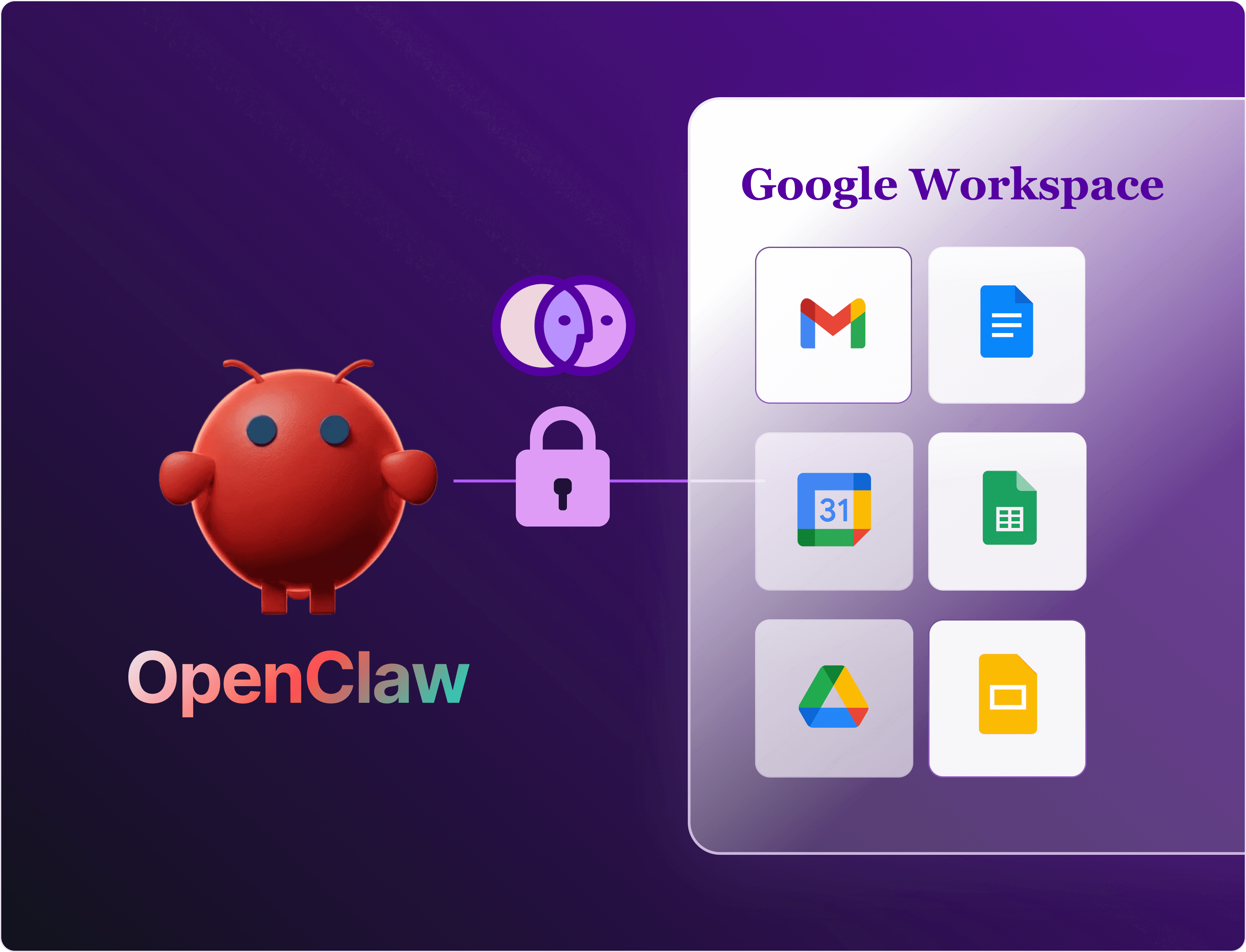
This guide shows a better approach: connecting OpenClaw to Google Workspace through Venn, which handles the OAuth flow through a Google-reviewed integration, centralizes your scopes and permissions in one dashboard, and gives you a full audit log of every call made to Google on your behalf.
The Problem with the DIY Google Connection
Skills like the gog tool and similar Google Workspace CLI integrations on ClawHub follow what you might call the BroAuth pattern. They ask you to register your own OAuth app in Google Cloud, download client_secret.json, and either put that file directly on your server or store credentials in environment variables. Some also ask for long-lived tokens that do not expire unless you manually revoke them.
The risks here stack up quickly. You are running an unverified Google app that has not gone through any security review. The credentials file on your server is readable by any other process with access to that directory. If anything on that machine is compromised, your entire Google Workspace account is exposed. And because each skill manages its own credentials, there is no central place to see what has access to what, no audit log, and no single switch to turn off if something goes wrong.
How Venn Changes the Setup
Venn sits between OpenClaw and your Google Workspace account as a governed MCP gateway. When you connect Google through Venn, you use a standard Google OAuth consent screen backed by an integration that has been through both an independent security audit and Google's own app review process. You are not standing up your own app. You are connecting to a vetted integration and approving the specific scopes you want to allow.
Once connected, Venn stores the tokens and exposes Google capabilities as tools through its MCP endpoint. OpenClaw never touches your credentials. There is no client_secret.json on your OpenClaw server. Everything goes through Venn's endpoint, under the policies you set.
Step 1: Connect Google Workspace to Venn
Log into your Venn dashboard at venn.ai and find the Google Workspace connector. Click Connect and a standard Google OAuth consent screen will open. You will see the Venn app name, the specific scopes being requested (Gmail, Calendar, Drive, and others depending on your setup), and Google's branding on the consent page. Review the scopes, approve the connection, and Google returns you to Venn with the integration active.
In Venn's connected apps view, you will now see Google Workspace listed as connected along with the capabilities that were authorized. This is also where you can tighten or loosen access later without touching anything in OpenClaw.
Step 2: Set Your Scope Policies in Venn
Before jumping into OpenClaw, take a moment in Venn to review what agents are allowed to do with your Google account. Venn lets you configure action-level policies, so you can allow reading mail but not sending, allow creating documents but not deleting, or require extra confirmation before sensitive operations. You are not giving OpenClaw blanket access to everything with no guardrails. You decide exactly what is permitted from this one central place.
If you want to tighten access later, you toggle it off in Venn. The change takes effect immediately for every agent using that connection, including OpenClaw.
Step 3: Confirm Google Tools Are Available in OpenClaw
If you followed the first guide in this series, you already have the Venn skill installed in OpenClaw. With Google Workspace now connected in Venn, open the Venn skill's tool list in OpenClaw. You will see Gmail, Google Calendar, Google Drive, and Google Docs tools showing up there automatically, no additional skills required, no credentials to paste.
This is the same pattern from the first video. One skill in OpenClaw, governed by Venn, surfaces tools from every app you have connected. Adding Google Workspace to Venn did not require any changes on the OpenClaw side at all.
Step 4: Run a Real Google Workspace Workflow
With everything connected, try a cross-app Google prompt. A good starting test is asking OpenClaw to check your Google Calendar for specific events and then draft a follow-up email in Gmail based on what it finds. Watch the tool call logs as OpenClaw works through the request. You will see calls going to Venn's Google connector tools, not to any raw Google API directly.
Flip over to Venn's activity view and you will see those same calls logged there, tied to your Google Workspace integration. Every read, every draft, every calendar lookup is on record. If you ever need to investigate what happened or prove what an agent accessed, that audit trail is already there.
What You Get That the DIY Approach Cannot Provide
The BroAuth pattern gives you a working Google connection but no oversight. You have no central view of what scopes are active, no log of what was accessed, and no easy way to revoke access across multiple skills at once. If you ever rotate credentials or want to remove OpenClaw's Google access, you have to hunt down every skill config and update them individually.
With Venn, you get a Google-reviewed OAuth integration, central scope and policy control, a full audit log, and single-point revocation. You also get a connection that every agent in your workflow can share through Venn's MCP endpoint, rather than each one maintaining its own independent and unaudited Google credentials.
Frequently Asked Questions
Q: What is the BroAuth pattern and why is it a problem?
A: BroAuth refers to the informal practice of connecting an AI tool to a service by creating your own OAuth app, downloading credentials files, and managing tokens yourself outside of any governed system. It works for demos and personal projects but creates real security risks for company accounts: unverified apps, credentials on disk, no audit trail, and no centralized way to revoke access.
Q: Does Venn's Google Workspace integration require me to create an OAuth app in Google Cloud?
A: No. When you connect Google through Venn, you are authorizing a pre-built integration that Venn maintains. You do not need a Google Cloud project, an OAuth app, or any credentials files. You just go through the standard Google consent screen in your Venn dashboard.
Q: Has Venn's Google integration been reviewed by Google?
A: Yes. Venn's Google Workspace integration has gone through Google's app review process as well as an independent security audit. This is meaningfully different from a self-created OAuth app, which carries an unverified app warning during the consent flow.
Q: What Google Workspace apps can I access through Venn in OpenClaw?
A: With Google Workspace connected in Venn, you can access Gmail, Google Calendar, Google Drive, and Google Docs through OpenClaw's Venn skill. The specific actions available depend on the scopes you approved during the OAuth connection and the policies you set in Venn.
Q: Can I control what OpenClaw is allowed to do in my Google account?
A: Yes. Venn lets you set action-level policies for your Google Workspace connection. You can allow reading mail but not sending, allow creating documents but not deleting, or require confirmation before sensitive operations. These policies apply to every agent using Venn, including OpenClaw.
Q: Do I need to update anything in OpenClaw when I connect Google to Venn?
A: No. If you have the Venn skill installed in OpenClaw from the first guide in this series, Google Workspace tools appear automatically once you connect Google in Venn. There are no additional skills to install and no credentials to configure in OpenClaw.
Q: Where are Google credentials stored when using Venn?
A: Venn stores the OAuth tokens securely. They are not stored in OpenClaw's config folder, not in environment variables on your server, and not in any file that OpenClaw can read directly. OpenClaw talks to Venn's MCP endpoint using a Venn session token, not your Google credentials.
Q: How do I revoke OpenClaw's access to my Google account?
A: Revoke or adjust the connection directly in Venn's dashboard. The change takes effect immediately for every agent using that connection. You do not need to touch anything in OpenClaw's config or remove any skills.
Q: Can multiple agents share the same Google Workspace connection through Venn?
A: Yes. Any agent or tool that connects through Venn's MCP endpoint can access the Google Workspace tools you have authorized, subject to the policies you have set. This means you manage one connection and one set of permissions rather than maintaining separate credentials for each agent.
Q: Is this approach applicable to other SaaS apps besides Google Workspace?
A: Yes. The same pattern works for Jira, GitHub, Slack, Salesforce, and other apps that Venn supports. The first guide in this series covers the initial Venn and OpenClaw connection using Jira and GitHub as examples. The next video in this series covers the Jira and GitHub connection in more depth.
What to Do Next
If you have not yet connected Google Workspace to your Venn account, start there. Go to your Venn dashboard, find the Google Workspace connector, and complete the OAuth flow before coming back to OpenClaw. Once Google is connected and your scope policies are set, the tools will appear in OpenClaw automatically through the Venn skill you already have installed.
" width="142.64305822536426px"><path d="M 27.31 5.326 L 24.809 5.326 L 24.809 0.221 L 27.254 0.221 C 28.377 0.221 28.927 0.895 28.927 1.664 C 28.927 2.093 28.779 2.427 28.445 2.654 L 28.445 2.667 C 28.885 2.805 29.143 3.259 29.143 3.814 C 29.143 4.753 28.476 5.327 27.31 5.327 Z M 27.192 1.052 L 25.618 1.052 L 25.705 1.141 L 25.705 2.2 L 25.618 2.287 L 27.192 2.287 C 27.834 2.287 28.013 2.004 28.013 1.663 C 28.013 1.259 27.784 1.051 27.192 1.051 Z M 27.303 3.12 L 25.617 3.12 L 25.704 3.207 L 25.704 4.406 L 25.617 4.494 L 27.31 4.494 C 28.013 4.494 28.229 4.242 28.229 3.814 C 28.229 3.386 27.982 3.121 27.303 3.121 Z M 33.422 5.331 L 32.546 5.331 L 32.546 5.078 L 32.533 5.078 C 32.212 5.305 31.817 5.393 31.428 5.393 C 30.631 5.393 29.688 5.097 29.688 4.114 C 29.688 2.866 31.317 2.764 32.33 2.764 C 32.391 2.764 32.565 2.764 32.638 2.771 L 32.539 2.682 C 32.49 2.253 32.144 2.083 31.632 2.083 C 31.261 2.083 30.854 2.153 30.496 2.423 L 29.928 1.837 C 30.508 1.408 31.039 1.295 31.632 1.295 C 32.49 1.295 33.422 1.628 33.422 2.782 Z M 32.631 3.541 C 32.57 3.535 32.415 3.535 32.365 3.535 C 32.193 3.535 31.989 3.535 31.779 3.541 C 31.575 3.554 31.352 3.573 31.16 3.617 C 30.766 3.706 30.555 3.857 30.555 4.115 C 30.555 4.519 31.073 4.606 31.426 4.606 C 31.777 4.606 32.544 4.562 32.544 4.109 L 32.544 3.63 L 32.631 3.541 Z M 36.634 2.187 L 36.361 2.187 C 35.633 2.187 35.262 2.527 35.262 3.36 L 35.262 5.326 L 34.386 5.326 L 34.386 1.356 L 35.262 1.356 L 35.262 1.942 L 35.275 1.942 C 35.497 1.557 35.899 1.311 36.424 1.311 L 36.634 1.311 Z M 41.055 5.326 L 40.178 5.326 L 40.178 2.944 C 40.178 2.421 40.036 2.08 39.245 2.08 C 38.652 2.08 38.209 2.402 38.209 2.994 L 38.209 5.326 L 37.332 5.326 L 37.332 1.349 L 38.209 1.349 L 38.209 1.715 L 38.221 1.715 C 38.492 1.456 38.95 1.292 39.363 1.292 C 40.357 1.292 41.055 1.853 41.055 2.843 L 41.055 5.327 Z M 45.717 5.331 L 44.84 5.331 L 44.84 5.003 L 44.827 5.003 C 44.568 5.25 44.173 5.388 43.697 5.388 C 42.451 5.388 41.808 4.519 41.808 3.346 C 41.808 2.173 42.438 1.291 43.697 1.291 C 44.154 1.291 44.58 1.448 44.827 1.714 L 44.84 1.714 L 44.84 0.031 L 45.717 0.031 Z M 43.791 2.079 C 43 2.079 42.685 2.596 42.685 3.346 C 42.685 4.096 42.993 4.6 43.791 4.6 C 44.587 4.6 44.89 4.09 44.89 3.346 C 44.89 2.602 44.582 2.079 43.791 2.079 Z M 48.484 5.388 C 47.15 5.388 46.496 4.5 46.496 3.34 C 46.496 2.179 47.15 1.291 48.484 1.291 C 49.818 1.291 50.478 2.173 50.478 3.34 C 50.478 4.506 49.811 5.388 48.484 5.388 Z M 48.484 2.079 C 47.706 2.079 47.372 2.602 47.372 3.339 C 47.372 4.077 47.711 4.6 48.49 4.6 C 49.268 4.6 49.601 4.077 49.601 3.339 C 49.601 2.602 49.262 2.079 48.484 2.079 Z M 53.048 5.388 C 51.714 5.388 51.059 4.5 51.059 3.34 C 51.059 2.179 51.714 1.291 53.048 1.291 C 54.381 1.291 55.042 2.173 55.042 3.34 C 55.042 4.506 54.376 5.388 53.048 5.388 Z M 53.048 2.079 C 52.269 2.079 51.937 2.602 51.937 3.339 C 51.937 4.077 52.276 4.6 53.054 4.6 C 53.832 4.6 54.165 4.077 54.165 3.339 C 54.165 2.602 53.826 2.079 53.048 2.079 Z M 58.068 2.187 L 57.795 2.187 C 57.067 2.187 56.696 2.527 56.696 3.36 L 56.696 5.326 L 55.82 5.326 L 55.82 1.356 L 56.696 1.356 L 56.696 1.942 L 56.709 1.942 C 56.931 1.557 57.333 1.311 57.858 1.311 L 58.068 1.311 Z M 58.432 5.388 C 58.08 5.388 57.895 5.148 57.895 4.789 C 57.895 4.43 58.08 4.196 58.432 4.196 C 58.784 4.196 58.969 4.436 58.969 4.789 C 58.969 5.142 58.777 5.388 58.432 5.388 Z M 63.494 5.331 L 62.618 5.331 L 62.618 5.078 L 62.605 5.078 C 62.285 5.305 61.889 5.393 61.5 5.393 C 60.703 5.393 59.76 5.097 59.76 4.114 C 59.76 2.866 61.39 2.764 62.402 2.764 C 62.464 2.764 62.636 2.764 62.71 2.771 L 62.612 2.682 C 62.562 2.253 62.216 2.083 61.704 2.083 C 61.334 2.083 60.926 2.153 60.568 2.423 L 60 1.837 C 60.58 1.408 61.111 1.295 61.704 1.295 C 62.562 1.295 63.494 1.628 63.494 2.782 Z M 62.705 3.541 C 62.643 3.535 62.489 3.535 62.439 3.535 C 62.266 3.535 62.063 3.535 61.852 3.541 C 61.648 3.554 61.425 3.573 61.234 3.617 C 60.839 3.706 60.629 3.857 60.629 4.115 C 60.629 4.519 61.147 4.606 61.499 4.606 C 61.851 4.606 62.617 4.562 62.617 4.109 L 62.617 3.63 L 62.704 3.541 Z M 64.898 1.02 C 64.602 1.02 64.411 0.806 64.411 0.51 C 64.411 0.215 64.608 0 64.898 0 C 65.188 0 65.392 0.215 65.392 0.51 C 65.392 0.806 65.188 1.02 64.898 1.02 Z M 65.329 5.326 L 64.453 5.326 L 64.453 1.356 L 65.329 1.356 Z M 21.174 5.258 L 21.174 4.275 L 20.381 2.613 L 20.883 2.613 L 21.17 3.288 C 21.208 3.388 21.246 3.485 21.283 3.58 C 21.321 3.671 21.361 3.768 21.405 3.871 L 21.421 3.871 C 21.464 3.768 21.506 3.671 21.546 3.58 C 21.587 3.485 21.626 3.388 21.663 3.288 L 21.95 2.613 L 22.44 2.613 L 21.644 4.275 L 21.644 5.258 Z M 18.383 5.258 L 18.383 2.613 L 19.228 2.613 C 19.412 2.613 19.573 2.635 19.714 2.678 C 19.856 2.718 19.969 2.786 20.049 2.88 C 20.133 2.974 20.175 3.102 20.175 3.264 C 20.175 3.399 20.143 3.519 20.078 3.624 C 20.016 3.727 19.925 3.798 19.807 3.839 L 19.807 3.855 C 19.963 3.887 20.086 3.953 20.175 4.053 C 20.266 4.15 20.313 4.286 20.313 4.461 C 20.313 4.642 20.268 4.792 20.179 4.91 C 20.092 5.029 19.973 5.117 19.819 5.173 C 19.665 5.23 19.491 5.258 19.297 5.258 Z M 18.852 3.705 L 19.188 3.705 C 19.371 3.705 19.505 3.671 19.589 3.604 C 19.672 3.537 19.714 3.446 19.714 3.333 C 19.714 3.203 19.671 3.112 19.585 3.058 C 19.498 3.004 19.369 2.977 19.196 2.977 L 18.852 2.977 Z M 18.852 4.894 L 19.248 4.894 C 19.443 4.894 19.593 4.859 19.698 4.789 C 19.803 4.716 19.855 4.606 19.855 4.457 C 19.855 4.317 19.804 4.216 19.702 4.154 C 19.599 4.089 19.448 4.057 19.248 4.057 L 18.852 4.057 Z M 15.045 5.258 L 15.045 2.613 L 15.753 2.613 C 16.023 2.613 16.254 2.661 16.445 2.759 C 16.636 2.856 16.783 3.001 16.886 3.195 C 16.988 3.39 17.04 3.632 17.04 3.923 C 17.04 4.215 16.988 4.46 16.886 4.66 C 16.786 4.856 16.642 5.006 16.453 5.109 C 16.264 5.208 16.039 5.258 15.778 5.258 Z M 15.515 4.878 L 15.721 4.878 C 15.899 4.878 16.049 4.844 16.174 4.777 C 16.301 4.707 16.396 4.602 16.461 4.461 C 16.525 4.321 16.558 4.142 16.558 3.923 C 16.558 3.708 16.525 3.531 16.461 3.394 C 16.396 3.256 16.301 3.155 16.174 3.09 C 16.049 3.026 15.899 2.993 15.721 2.993 L 15.515 2.993 Z M 12.869 5.258 L 12.869 2.613 L 14.463 2.613 L 14.463 3.009 L 13.339 3.009 L 13.339 3.685 L 14.289 3.685 L 14.289 4.081 L 13.339 4.081 L 13.339 4.862 L 14.503 4.862 L 14.503 5.258 Z M 10.475 5.258 L 10.475 2.613 L 11.369 2.613 C 11.553 2.613 11.717 2.637 11.863 2.686 C 12.008 2.734 12.124 2.817 12.21 2.933 C 12.296 3.046 12.339 3.201 12.339 3.398 C 12.339 3.586 12.296 3.741 12.21 3.863 C 12.124 3.984 12.008 4.075 11.863 4.134 C 11.717 4.193 11.553 4.223 11.369 4.223 L 10.944 4.223 L 10.944 5.258 Z M 10.944 3.851 L 11.321 3.851 C 11.501 3.851 11.639 3.813 11.733 3.737 C 11.83 3.662 11.879 3.549 11.879 3.398 C 11.879 3.247 11.83 3.141 11.733 3.082 C 11.639 3.02 11.501 2.989 11.321 2.989 L 10.944 2.989 Z M 11.919 5.258 L 11.28 4.097 L 11.62 3.818 L 12.445 5.258 Z M 8.299 5.258 L 8.299 2.613 L 9.892 2.613 L 9.892 3.009 L 8.768 3.009 L 8.768 3.685 L 9.719 3.685 L 9.719 4.081 L 8.768 4.081 L 8.768 4.862 L 9.933 4.862 L 9.933 5.258 Z M 5.311 5.258 L 4.801 2.613 L 5.303 2.613 L 5.529 3.948 C 5.551 4.088 5.57 4.23 5.59 4.372 C 5.609 4.513 5.626 4.66 5.642 4.813 L 5.658 4.813 C 5.683 4.66 5.709 4.513 5.735 4.372 C 5.762 4.23 5.791 4.088 5.82 3.948 L 6.128 2.613 L 6.589 2.613 L 6.888 3.948 C 6.918 4.085 6.947 4.226 6.977 4.368 C 7.006 4.511 7.033 4.66 7.058 4.813 L 7.074 4.813 C 7.09 4.66 7.108 4.513 7.127 4.372 C 7.148 4.23 7.168 4.088 7.187 3.948 L 7.414 2.613 L 7.891 2.613 L 7.381 5.258 L 6.758 5.258 L 6.46 3.867 C 6.44 3.77 6.421 3.67 6.403 3.568 C 6.386 3.462 6.37 3.349 6.354 3.228 L 6.338 3.228 C 6.328 3.341 6.315 3.455 6.298 3.568 C 6.281 3.67 6.263 3.77 6.241 3.867 L 5.933 5.258 Z M 3.382 5.307 C 3.152 5.307 2.95 5.251 2.775 5.141 C 2.6 5.028 2.462 4.869 2.362 4.664 C 2.265 4.456 2.217 4.209 2.217 3.923 C 2.217 3.638 2.265 3.394 2.362 3.191 C 2.462 2.989 2.6 2.834 2.775 2.726 C 2.95 2.618 3.152 2.564 3.382 2.564 C 3.614 2.564 3.817 2.618 3.992 2.726 C 4.168 2.834 4.304 2.989 4.401 3.191 C 4.5 3.394 4.551 3.638 4.551 3.923 C 4.551 4.209 4.5 4.456 4.401 4.664 C 4.304 4.869 4.168 5.028 3.992 5.141 C 3.817 5.251 3.614 5.307 3.382 5.307 Z M 3.382 4.898 C 3.522 4.898 3.642 4.859 3.742 4.781 C 3.844 4.7 3.924 4.587 3.98 4.441 C 4.037 4.293 4.065 4.12 4.065 3.923 C 4.065 3.727 4.037 3.558 3.98 3.418 C 3.924 3.275 3.844 3.166 3.742 3.09 C 3.642 3.012 3.522 2.973 3.382 2.973 C 3.244 2.973 3.124 3.012 3.022 3.09 C 2.919 3.166 2.84 3.275 2.783 3.418 C 2.726 3.558 2.698 3.727 2.698 3.923 C 2.698 4.12 2.726 4.293 2.783 4.441 C 2.84 4.587 2.919 4.7 3.022 4.781 C 3.124 4.859 3.244 4.898 3.382 4.898 Z M 0 5.258 L 0 2.613 L 0.833 2.613 C 1.03 2.613 1.205 2.639 1.359 2.69 C 1.513 2.741 1.634 2.826 1.723 2.945 C 1.812 3.063 1.857 3.225 1.857 3.43 C 1.857 3.624 1.812 3.785 1.723 3.911 C 1.637 4.038 1.517 4.132 1.363 4.194 C 1.212 4.256 1.041 4.288 0.849 4.288 L 0.469 4.288 L 0.469 5.258 Z M 0.469 3.911 L 0.813 3.911 C 1.01 3.911 1.155 3.871 1.25 3.79 C 1.347 3.709 1.395 3.589 1.395 3.43 C 1.395 3.263 1.344 3.148 1.242 3.086 C 1.142 3.021 0.994 2.989 0.797 2.989 L 0.469 2.989 Z" fill="rgb(255, 255, 255)" height="5.393036717460973px" id="FVo8RhfrL" transform="translate(77.251 29.574)" width="65.39179174587207px"/><path d="M 9.931 19.862 C 15.415 19.862 19.861 15.415 19.861 9.931 C 19.861 4.446 15.415 0 9.931 0 C 4.446 0 0 4.446 0 9.931 C 0 15.415 4.446 19.862 9.931 19.862 Z" fill="rgb(227, 161, 249)" height="19.861502010578022px" id="wIEfEJ8nz" transform="translate(11.553 1.464)" width="19.861420650659056px"/><path d="M 9.931 19.862 C 15.415 19.862 19.862 15.415 19.862 9.931 C 19.862 4.446 15.415 0 9.931 0 C 4.446 0 0 4.446 0 9.931 C 0 15.415 4.446 19.862 9.931 19.862 Z" fill="rgb(237, 213, 222)" height="19.861502010578022px" id="q8HLMxFTw" transform="translate(1.546 1.464)" width="19.86150201057808px"/><path d="M 9.177 14.852 L 6.445 18.495 L 2.872 15.973 L 0 11.139 L 1.401 4.344 L 5.885 0 L 8.127 1.121 L 11.77 7.846 L 11.77 12.26 L 9.948 12.26 Z" fill="rgb(184, 145, 255)" height="18.494980814892017px" id="prxdMckn1" transform="translate(10.373 2.115)" width="11.769607209403148px"/><path d="M 11.544 2.122 C 16.74 2.122 20.967 6.349 20.967 11.544 C 20.967 16.74 16.74 20.967 11.544 20.967 C 6.349 20.967 2.122 16.74 2.122 11.544 C 2.122 6.349 6.352 2.122 11.544 2.122 Z M 11.544 0 C 5.171 0 0 5.168 0 11.544 C 0 17.921 5.168 23.089 11.544 23.089 C 17.921 23.089 23.089 17.921 23.089 11.544 C 23.089 5.168 17.921 0 11.544 0 Z" fill="rgb(85, 0, 161)" height="23.088887268405585px" id="vzsifP3Qy" transform="translate(9.682 0)" width="23.088887268405415px"/><path d="M 14.365 20.783 C 13.617 20.987 12.843 21.095 12.062 21.123 C 11.947 21.126 11.836 21.129 11.721 21.129 C 9.066 21.129 6.581 20.096 4.719 18.22 C 2.915 16.402 1.936 14.001 1.955 11.463 C 2 6.22 6.299 1.957 11.542 1.957 C 12.388 1.957 13.234 2.049 14.055 2.25 C 15.624 2.636 17.162 3.498 18.265 4.676 C 20.125 6.661 21.088 9.557 21.13 13.275 C 21.13 13.314 21.116 13.351 21.088 13.379 C 21.06 13.407 21.024 13.423 20.985 13.423 C 20.504 13.423 20.189 13.423 19.938 13.421 L 19.829 13.421 C 19.566 13.421 19.346 13.624 19.326 13.887 C 19.175 15.992 18.542 18.63 16.601 19.828 C 15.901 20.261 15.147 20.576 14.368 20.788 Z M 18.53 20.719 C 19.926 19.364 20.772 17.513 21.105 15.487 C 21.116 15.422 21.169 15.375 21.236 15.375 L 21.833 15.375 C 22.523 15.375 23.087 14.814 23.087 14.121 L 23.087 13.524 C 23.087 11.374 22.799 9.42 22.23 7.714 C 21.671 6.036 20.839 4.59 19.759 3.412 C 17.682 1.147 14.588 0 11.545 0 C 8.443 0 5.529 1.217 3.343 3.429 C 1.154 5.64 -0.033 8.565 0.001 11.67 C 0.068 17.963 5.333 23.083 11.738 23.083 C 11.914 23.083 12.09 23.08 12.265 23.072 C 13.46 23.019 14.661 22.832 15.789 22.421 C 16.867 22.031 17.779 21.447 18.53 20.718 Z" fill="rgb(85, 0, 161)" height="23.083192074091556px" id="xhd5wrWJ6" width="23.086809036992236px"/><path d="M 0 1.188 C 0 0.944 0.067 0.732 0.2 0.553 C 0.335 0.373 0.51 0.236 0.727 0.141 C 0.944 0.047 1.167 0 1.396 0 C 1.626 0 1.843 0.049 2.056 0.151 C 2.268 0.251 2.44 0.394 2.57 0.579 C 2.7 0.763 2.766 0.972 2.766 1.204 C 2.766 1.545 2.628 1.823 2.35 2.038 C 2.073 2.252 1.762 2.359 1.416 2.359 C 1.064 2.36 0.721 2.248 0.437 2.039 C 0.147 1.826 0.001 1.542 0.001 1.188 Z M 9.682 1.188 C 9.682 0.944 9.749 0.732 9.882 0.553 C 10.017 0.373 10.192 0.236 10.409 0.141 C 10.626 0.047 10.849 0 11.078 0 C 11.308 0 11.525 0.049 11.738 0.151 C 11.949 0.251 12.122 0.394 12.252 0.579 C 12.382 0.763 12.448 0.972 12.448 1.204 C 12.448 1.545 12.309 1.823 12.032 2.038 C 11.755 2.252 11.444 2.359 11.098 2.359 C 10.746 2.36 10.403 2.248 10.119 2.039 C 9.829 1.826 9.683 1.542 9.683 1.188 Z" fill="rgb(85, 0, 161)" height="2.3594392075644874px" id="DM5OSZuOe" transform="translate(15.214 9.112)" width="12.448074320140222px"/><path d="M 29.084 20.628 C 29.869 20.628 30.591 20.471 31.247 20.156 C 31.904 19.841 32.575 19.38 33.26 18.77 C 33.602 18.478 33.831 18.292 33.944 18.211 C 34.056 18.131 34.252 18.089 34.529 18.089 C 34.75 18.089 34.955 18.171 35.144 18.335 C 35.332 18.499 35.426 18.694 35.426 18.92 C 35.426 19.424 35.15 19.951 34.596 20.5 C 34.042 21.05 33.483 21.483 32.919 21.8 C 31.469 22.669 29.757 23.103 27.783 23.103 C 26.741 23.103 25.715 22.933 24.706 22.594 C 23.697 22.254 22.799 21.767 22.014 21.132 C 21.229 20.499 20.607 19.728 20.149 18.822 C 19.691 17.915 19.461 16.91 19.461 15.809 C 19.461 14.141 19.892 12.68 20.753 11.421 C 21.613 10.162 22.759 9.196 24.19 8.525 C 25.62 7.853 27.147 7.517 28.774 7.517 C 29.756 7.517 30.736 7.676 31.716 7.993 C 32.695 8.31 33.507 8.806 34.152 9.484 C 34.797 10.161 35.118 11.01 35.118 12.032 C 35.118 13.054 34.701 13.927 33.868 14.621 C 33.034 15.316 32.037 15.854 30.873 16.237 C 30.335 16.408 29.744 16.558 29.102 16.686 C 28.46 16.815 27.736 16.936 26.931 17.049 C 26.126 17.162 25.511 17.252 25.089 17.317 C 25.31 18.298 25.784 19.096 26.509 19.709 C 27.234 20.323 28.092 20.63 29.084 20.63 Z M 30.292 11.692 C 30.292 11.079 30.134 10.59 29.817 10.228 C 29.5 9.865 29.039 9.684 28.436 9.684 C 27.292 9.684 26.405 10.256 25.769 11.401 C 25.134 12.546 24.817 13.828 24.817 15.246 C 26.166 15.146 27.417 14.812 28.567 14.246 C 29.717 13.679 30.292 12.828 30.292 11.691 Z M 52.712 18.717 C 52.712 19.542 52.752 20.089 52.834 20.356 C 52.903 20.471 53.1 20.648 53.423 20.884 C 53.795 21.101 53.982 21.368 53.982 21.685 C 53.982 22.324 53.59 22.644 52.805 22.644 L 47.578 22.644 C 46.793 22.644 46.4 22.324 46.4 21.685 C 46.4 21.368 46.587 21.101 46.959 20.884 C 47.282 20.647 47.477 20.471 47.548 20.356 C 47.628 20.089 47.67 19.542 47.67 18.717 L 47.67 13.732 C 47.67 12.589 47.535 11.701 47.266 11.066 C 46.996 10.432 46.368 10.114 45.382 10.114 C 44.304 10.114 43.51 10.536 43.002 11.383 C 42.69 11.876 42.534 12.721 42.534 13.92 L 42.534 18.716 C 42.534 19.541 42.577 20.088 42.663 20.354 C 42.723 20.46 42.917 20.637 43.244 20.883 C 43.616 21.099 43.803 21.366 43.803 21.683 C 43.803 22.323 43.412 22.642 42.631 22.642 L 37.392 22.642 C 36.611 22.642 36.22 22.323 36.22 21.683 C 36.22 21.366 36.404 21.099 36.771 20.883 C 37.103 20.646 37.299 20.47 37.36 20.354 C 37.446 20.088 37.489 19.541 37.489 18.716 L 37.489 12.803 C 37.489 12.108 37.437 11.624 37.335 11.353 C 37.232 11.081 36.974 10.844 36.561 10.643 C 36.129 10.462 35.912 10.182 35.912 9.805 C 35.912 9.469 36.221 9.125 36.842 8.775 C 37.462 8.425 38.168 8.128 38.959 7.884 C 39.751 7.64 40.325 7.517 40.683 7.517 C 41.137 7.517 41.459 7.734 41.651 8.167 C 41.842 8.599 41.983 9.126 42.075 9.745 C 43.288 8.26 44.928 7.517 46.992 7.517 C 48.884 7.517 50.35 8.064 51.388 9.156 C 52.274 10.122 52.716 11.618 52.716 13.642 L 52.716 18.717 Z M 71.626 18.717 C 71.626 19.542 71.666 20.089 71.747 20.356 C 71.817 20.471 72.014 20.648 72.337 20.884 C 72.71 21.101 72.897 21.368 72.897 21.685 C 72.897 22.324 72.504 22.644 71.719 22.644 L 66.492 22.644 C 65.707 22.644 65.315 22.324 65.315 21.685 C 65.315 21.368 65.502 21.101 65.875 20.884 C 66.197 20.647 66.392 20.471 66.464 20.356 C 66.543 20.089 66.585 19.542 66.585 18.717 L 66.585 13.732 C 66.585 12.589 66.451 11.701 66.181 11.066 C 65.911 10.432 65.283 10.114 64.297 10.114 C 63.22 10.114 62.426 10.536 61.918 11.383 C 61.606 11.876 61.45 12.721 61.45 13.92 L 61.45 18.716 C 61.45 19.541 61.493 20.088 61.578 20.354 C 61.638 20.46 61.832 20.637 62.159 20.883 C 62.532 21.099 62.719 21.366 62.719 21.683 C 62.719 22.323 62.327 22.642 61.547 22.642 L 56.308 22.642 C 55.527 22.642 55.135 22.323 55.135 21.683 C 55.135 21.366 55.32 21.099 55.687 20.883 C 56.019 20.646 56.215 20.47 56.276 20.354 C 56.361 20.088 56.404 19.541 56.404 18.716 L 56.404 12.803 C 56.404 12.108 56.353 11.624 56.25 11.353 C 56.147 11.081 55.889 10.844 55.477 10.643 C 55.044 10.462 54.827 10.182 54.827 9.805 C 54.827 9.469 55.137 9.125 55.758 8.775 C 56.378 8.425 57.084 8.128 57.875 7.884 C 58.666 7.64 59.241 7.517 59.599 7.517 C 60.053 7.517 60.375 7.734 60.566 8.167 C 60.757 8.599 60.899 9.126 60.99 9.745 C 62.204 8.26 63.843 7.517 65.907 7.517 C 67.8 7.517 69.266 8.064 70.303 9.156 C 71.19 10.122 71.632 11.618 71.632 13.642 L 71.632 18.717 Z M 74.32 20.636 C 74.32 20.122 74.462 19.675 74.746 19.295 C 75.031 18.916 75.403 18.626 75.864 18.426 C 76.325 18.226 76.799 18.128 77.287 18.128 C 77.775 18.128 78.237 18.233 78.689 18.445 C 79.14 18.656 79.503 18.957 79.781 19.347 C 80.057 19.736 80.196 20.176 80.196 20.664 C 80.196 21.385 79.902 21.97 79.312 22.424 C 78.723 22.878 78.061 23.103 77.325 23.103 C 76.591 23.103 75.862 22.878 75.245 22.428 C 74.628 21.977 74.32 21.379 74.32 20.634 Z M 97.016 18.402 C 97.016 19.268 97.066 19.833 97.167 20.1 C 97.289 20.352 97.515 20.549 97.847 20.69 C 98.365 20.952 98.625 21.274 98.625 21.652 C 98.625 22.087 98.478 22.361 98.184 22.474 C 97.89 22.588 97.479 22.644 96.949 22.644 L 93.862 22.644 C 93.354 22.644 92.987 22.584 92.763 22.462 C 92.539 22.341 92.396 22.16 92.336 21.92 C 92.276 21.68 92.228 21.279 92.194 20.718 C 91.222 22.31 89.624 23.105 87.399 23.105 C 86.398 23.105 85.474 22.922 84.629 22.557 C 83.784 22.191 83.104 21.648 82.595 20.925 C 82.084 20.203 81.829 19.332 81.829 18.316 C 81.829 17.3 82.12 16.398 82.701 15.673 C 83.282 14.948 84.029 14.381 84.939 13.973 C 85.849 13.565 86.816 13.274 87.836 13.101 C 88.858 12.927 89.844 12.84 90.795 12.84 L 91.851 12.84 C 91.851 11.863 91.608 11.076 91.123 10.479 C 90.638 9.882 89.921 9.584 88.977 9.584 C 88.554 9.584 88.205 9.664 87.927 9.825 C 87.651 9.987 87.322 10.236 86.943 10.576 C 86.563 10.916 86.228 11.167 85.935 11.327 C 85.643 11.488 85.286 11.568 84.863 11.568 C 84.355 11.568 83.908 11.445 83.522 11.198 C 83.138 10.951 82.945 10.579 82.945 10.081 C 82.945 9.421 83.336 8.902 84.12 8.521 C 84.902 8.141 85.792 7.877 86.788 7.732 C 87.785 7.586 88.638 7.513 89.348 7.513 C 91.452 7.513 93.173 7.896 94.512 8.661 C 95.432 9.189 96.08 9.843 96.455 10.619 C 96.831 11.397 97.018 12.362 97.018 13.513 L 97.018 18.398 Z M 91.441 14.789 C 90.228 14.789 89.188 15.092 88.323 15.699 C 87.456 16.305 87.024 17.186 87.024 18.342 C 87.024 18.956 87.198 19.479 87.549 19.915 C 87.899 20.35 88.374 20.567 88.972 20.567 C 89.899 20.567 90.692 20.072 91.352 19.081 C 91.649 18.583 91.831 18.105 91.899 17.644 C 91.968 17.183 92.001 16.562 92.001 15.777 L 92.001 14.789 Z M 100.925 13.89 C 100.925 12.797 100.894 12.025 100.834 11.571 C 100.779 11.268 100.69 11.05 100.566 10.914 C 100.442 10.779 100.232 10.625 99.935 10.453 C 99.633 10.278 99.428 10.144 99.323 10.052 C 99.218 9.962 99.165 9.805 99.165 9.584 C 99.165 9.393 99.231 9.229 99.364 9.089 C 99.497 8.95 99.657 8.84 99.844 8.761 C 100.03 8.681 100.24 8.611 100.471 8.554 C 100.702 8.496 100.896 8.449 101.051 8.414 C 102.848 7.814 104.064 7.515 104.7 7.515 C 105.546 7.515 105.968 8.298 105.968 9.864 L 105.968 18.716 C 105.968 19.541 106.011 20.087 106.097 20.354 C 106.157 20.46 106.35 20.637 106.678 20.882 C 107.05 21.099 107.237 21.366 107.237 21.683 C 107.237 22.323 106.844 22.642 106.06 22.642 L 100.833 22.642 C 100.052 22.642 99.663 22.323 99.663 21.683 C 99.663 21.366 99.847 21.099 100.213 20.882 C 100.546 20.646 100.741 20.47 100.803 20.354 C 100.883 20.087 100.925 19.541 100.925 18.716 Z M 100.002 3.427 C 100.002 2.643 100.304 2.014 100.904 1.541 C 101.506 1.069 102.204 0.832 102.999 0.832 C 103.794 0.832 104.53 1.048 105.129 1.477 C 105.729 1.907 106.028 2.516 106.028 3.305 C 106.028 4.049 105.705 4.643 105.062 5.085 C 104.417 5.528 103.71 5.749 102.94 5.749 C 102.169 5.749 101.518 5.539 100.912 5.12 C 100.305 4.7 100.001 4.136 100.001 3.427 Z M 21.405 0.001 L 17.878 0.001 C 17.374 0.001 16.955 0.061 16.616 0.18 C 16.28 0.298 16.11 0.558 16.11 0.962 C 16.11 1.275 16.198 1.51 16.374 1.669 C 16.549 1.827 16.819 2 17.182 2.187 C 17.544 2.372 17.822 2.571 18.017 2.779 C 18.211 2.987 18.368 3.293 18.308 3.681 C 17.771 7.153 14.839 15.626 13.111 18.627 L 13.081 18.627 L 13.074 18.612 C 10.117 14.799 8.283 8.367 7.619 5.72 C 7.345 4.756 7.205 3.931 7.205 3.25 C 7.205 2.947 7.281 2.718 7.432 2.559 C 7.583 2.401 7.81 2.242 8.111 2.084 C 8.414 1.925 8.636 1.778 8.779 1.641 C 8.922 1.504 8.995 1.299 8.995 1.022 C 8.995 0.343 8.355 0.001 7.078 0.001 L 1.977 0.001 C 0.658 0.001 0 0.351 0 1.052 C 0 1.269 0.047 1.432 0.14 1.543 C 0.233 1.654 0.391 1.796 0.615 1.97 C 0.839 2.144 1.025 2.339 1.173 2.559 C 1.322 2.779 1.436 3.092 1.516 3.5 C 1.516 3.5 4.055 15.162 8.916 21.854 C 9.092 22.114 9.247 22.321 9.383 22.473 C 9.61 22.724 9.882 22.894 10.202 22.978 C 10.522 23.063 11.007 23.106 11.657 23.106 C 12.386 23.106 12.933 22.988 13.295 22.751 C 13.528 22.598 13.766 22.358 14.007 22.03 C 16.549 18.971 19.3 10.732 20.59 6.541 C 20.859 5.707 21.109 4.866 21.338 4.019 C 21.493 3.45 21.63 3.066 21.746 2.863 C 21.862 2.662 22.109 2.408 22.485 2.101 C 22.898 1.754 23.105 1.393 23.105 1.02 C 23.105 0.341 22.538 0 21.405 0 Z" fill="rgb(255, 255, 255)" height="23.106216931103916px" id="OLmhFnAXg" transform="translate(35.31 0)" width="107.23727265662001px"/></g></svg>)